Verification Status
Verification Status User Guide
The Entity Verification Status section allows you to track and manage the verification statuses of entities in your profile. This section is visible only if you have access to the Entities section. It provides a quick summary of the verification statuses, making it easy to identify entities that may need your attention.
Keep in mind that within the Entities section, you have the ability to perform the following actions:
- Update Entity Information: Modify entity details as needed to keep records accurate.
- Mark Entity as Inactive: Adjust the status of an entity if it is no longer in use.
- Self-certify entity record: Approve and self-certify records as needed, if you have the user role.
1. Verified
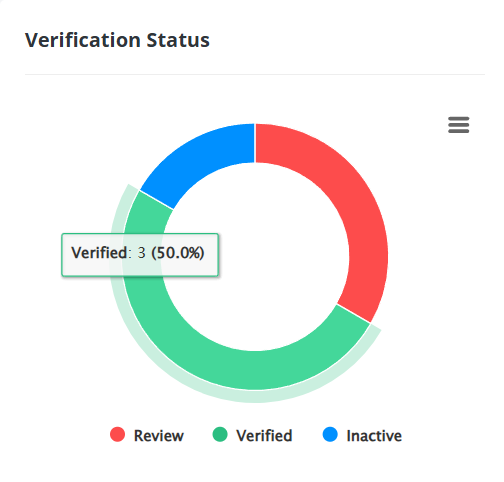
The green section of the chart indicates how many records are verified records in your entity list. By clicking on this portion, you will be redirected to the entities list filtered to show only verified entities.
2. Review
The red section displays entities that have a red thumb and thus need to be reviewed. Clicking the portion will redirect you to the Entities section, where only entities marked with red thumbs (indicating a review is needed) will be displayed.
3. Inactive
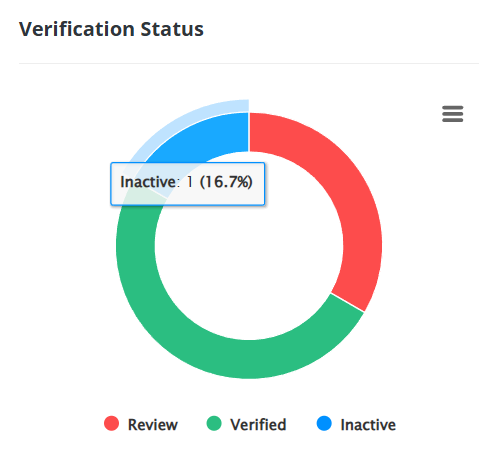
The blue section displays the amount of inactive records are in your entities section. Clicking this portion will redirect you to the entities section, filtered to show Inactive records only.
4. Self-certified
The light green section of the chart indicates the amount of entity records that have been self-certified. Clicking this portion will redirect you to the entities section, filtered to show only show records that have been self-certified.
5. Unverified
The orange section of the chart indicates if there are any records that have not yet been verified. Clicking this portion will redirect you to the entities section, filtered to show only show records that have been are unverified.
Related Articles
Onboarding Status
Onboarding Status The Onboarding Status Overview section delivers a concise summary of the onboarding stages, offering a clear snapshot of progress across all onboardings. It provides a quick and easy way to track the current status of each ...Manual Payment Verification
Manual Payment Verification In the eftsure portal, you can manually verify single payments using the “Manual Payment Verification” feature. This allows you to check bank details for payments individually, ensuring that each vendor is verified before ...Adding a New Entity
Adding a New Entity Overview The Add New Entity feature allows you to quickly add a new entity without sending an onboarding invitation to the supplier. This is useful when you already have all the necessary information about the entity. Steps to Add ...Orange Thumbs in the Payment File
Orange Thumbs in the Payment File In eftsure, an orange thumb in the Payments section flags a verification issue with a payment record. Below are common causes and the steps you can take to address them 1. Entity Not in Vendor Master file If an ...Applying Filters in the Payments Section
Applying Filters in the Payments Section The Payments section in eftsure provides access to view and manage payment records. To enhance efficiency and target specific data, use the available filters to tailor the displayed information to your needs. ...