User Guide
Your Guide to Getting Started!
We’re excited to have you onboard! This user guide is designed to help you navigate our platform with ease, ensuring you get the most out of its features and functionalities. Whether you're a first-time user or looking to explore advanced tools, we’ve got you covered. Inside, you will find all the essential information, tools, and resources you need to become familiar with our company’s systems and processes. Our goal is to provide you with a seamless experience, making it easy to use and enjoy everything AP Automate has to offer.
 Onboarding
How to Onboard a New Supplier – Simplified Guide
Follow these steps to onboard a new supplier efficiently:
Step 1: Access the Onboarding Section
- Log in to your profile.
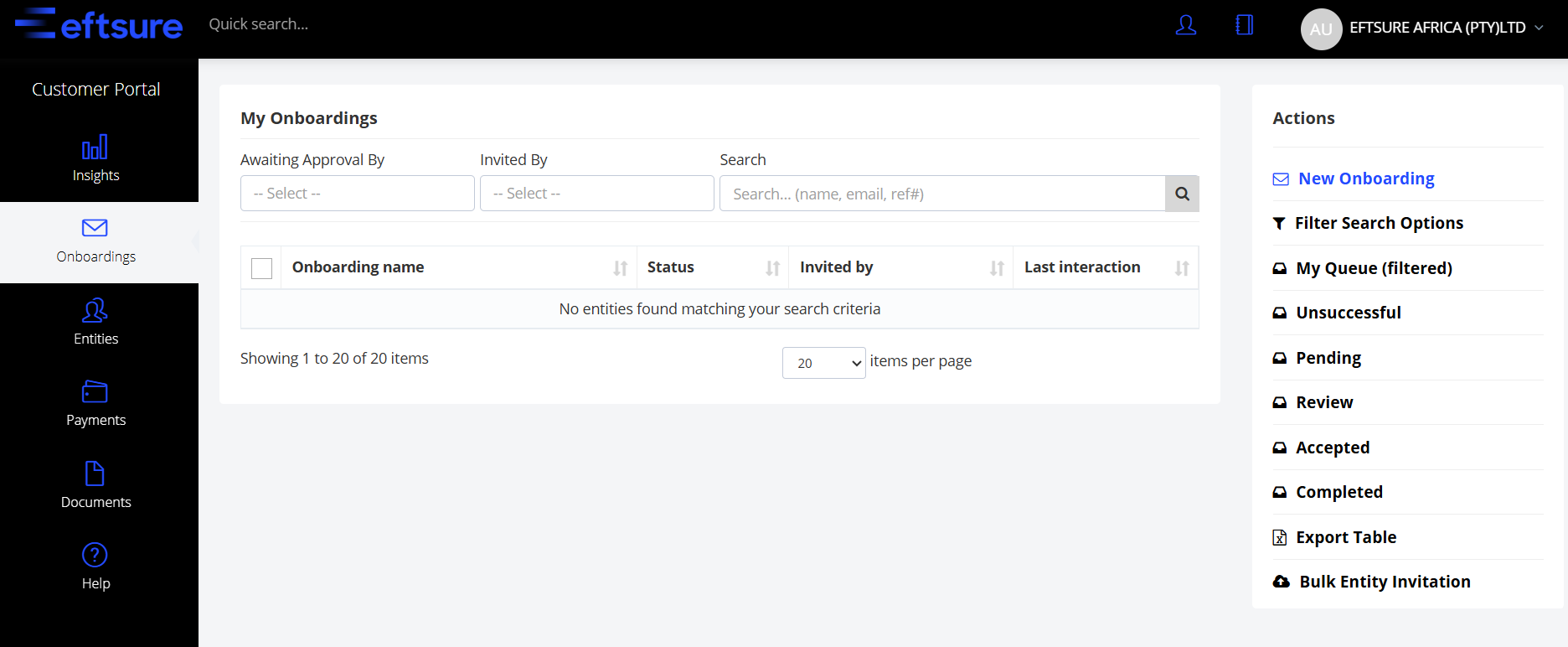
- Go to the Onboardings section:
- Hover over Onboardings in the menu.
- Click on Invitations.
Step 2: Understanding the Actions Column & Filters
On the right-hand side, you'll find different filters that help you manage Onboardings:
- New Onboarding – Quick actions for a new onboarding process.
- Filter – Refines results shown in the table.
- My Queue – Displays onboardings pending approval.
- Unsuccessful – Onboardings that were canceled or rejected after four email reminders.
- Pending – Invitee has started registration but has not created an account.
- Review – Onboarding is under review.
- Accepted – Successful onboarding with a unique entity code.
- Export Table – Allows you to export the onboarding data.
- Bulk Entity – Enables bulk addition or editing of entities.
- Click on "New Onboarding."
- Fill in the required details
Please note that adding a contact number is optional and only required for two-factor authentication. If the number or email address is incorrect, click "Show / Resend Invitation" to correct the details.
Final Step: Submit the Onboarding
Before clicking "Continue", double-check all entered information to ensure accuracy.
Bulk Entity Invitations
This function allows you to send Onboarding Invitations to multiple vendors simultaneously.
Step 1: Click the Bulk Entity Invitation Feature under the Actions column
- Download the Entity Invitation Template.
Before uploading the completed template, you must fill in these three fields:
- Bulk Process Type – Choose whether this is a Bulk Invite or a Bulk Change Request.
- Division – If your company has multiple divisions, select the applicable one for this bulk invite.
- Onboarding Template – Choose the appropriate Onboarding Form you want to populate.
Step 2: Complete the Template
- Populate the template with all necessary details, ensuring all required fields are completed accurately.
- Refer to the Bulk Process Table Legend for guidance on filling out the template correctly.
- If you would like to add Two-Factor Authentication – Type TRUE in Column H on the Excel template (this sends an SMS code to the supplier’s phone number)
- Payment Options – Refer to the example for correct codes.
- If you want all three payment options, type 1#2#3 in the designated field.
- Repeat the process for all suppliers until the spreadsheet is complete.
- Save the completed file.
- Select the entity file and process it.
- If there are errors in the form, an exclamation mark will appear as a warning.
Entity Library
- Filter Entities – Using the filter tool, you can search for a specific document type, as well as view all documents that are expiring or have expired. This helps track expiration dates, ensuring timely requests for updated versions.
- Add New Entity- This allows you to manually add a new entity
- Complete form- An entity can only be verified by using an ID number or CIPC number. If you select “OTHER” the entity will be verified.
- Entity reference code: Suppliers unique identifier which you will find on the suppliers entities. in roder to locate the entity record. Which will match with their erp system.
- Click add entity - will come up in the entities section, give it a few minutes and it will run verification.
Related Articles
Making an Entity Active User Guide
User Guide: Making an Entity Active To activate an entity, you must have the "Make Entity Active" user right. Please keep this in mind. Access the "Make Entity Active" Option In the Entities Section, click on the Actions button, and then click on ...Single Sign-On (SSO) User Guide
Single Sign-On (SSO) User Guide What is Single Sign-On (SSO)? Single Sign-On (SSO) simplifies access by allowing you to log in once and seamlessly navigate multiple systems or applications without needing to re-enter your credentials. When enabled by ...Two-Factor Authentication (2FA) User Guide
Two-Factor Authentication (2FA) User Guide What is Two-Factor Authentication (2FA)? Two-Factor Authentication (2FA) enhances security by requiring two forms of verification to access your account, ensuring that even if someone has your password, they ...Editing and Deleting a User Profile
User Guide: Editing and Deleting a User Profile Follow these steps to edit or delete a user profile: 1. Accessing User Management Click on the Person icon located at the top of the page to access the User Management section. 2. Managing User Profiles ...Bank extension & FNB User Guide
Steps to Use the eftsure Bank Extension with FNB Online Banking: Download the eftsure Bank Extension Download and install the eftsure Bank Extension on the same browser that you use to access your FNB Online Banking Portal. Use this link to download: ...